Skip to content
Brevity
ExploreToolsModelsBlogPricing
Log in
Start creating
Models/Veo 3.1 Fast

Google · Veo

Veo 3.1 Fast

Create focused eight-second 1080p scenes from text or imagery, then compose them into a polished Brevity production.

Create with Veo 3.1 Fast

Generator setup

Create with Veo 3.1 Fast

Input

One clear visual beat works best.120/2000

Studio composes model-valid scenes to reach this target.

No credits are used until you review and generate in the Studio.

Model showcase

A natural close portrait with subtle facial motion

Scene output
1080p
Scene length
8 seconds
Formats
Vertical, landscape
Inputs
Text or image

A closer look

Motion, frame by frame.

Selected frames from the Veo 3.1 Fast showcase reveal the movement, texture, and composition inside one scene.
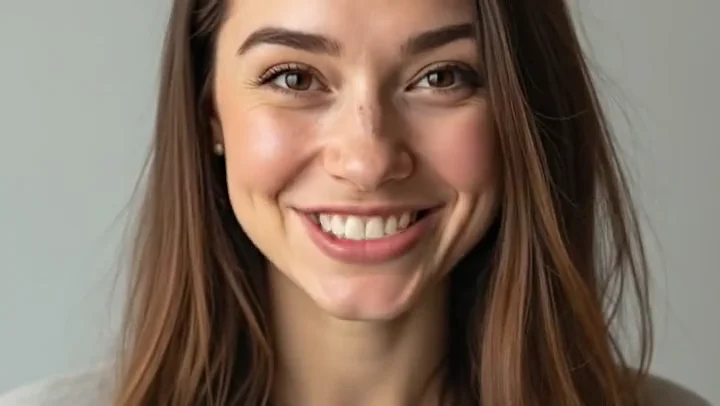
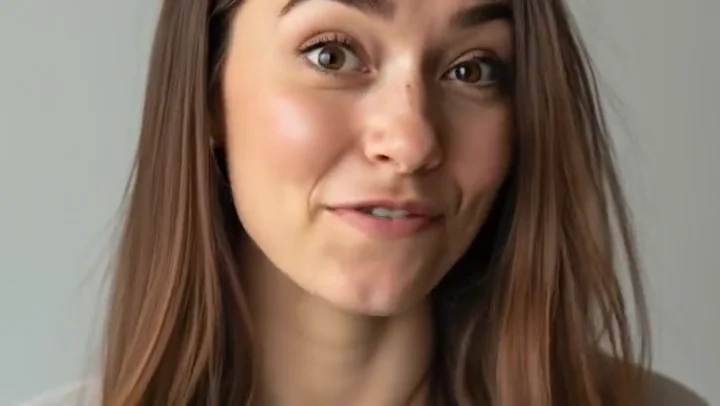
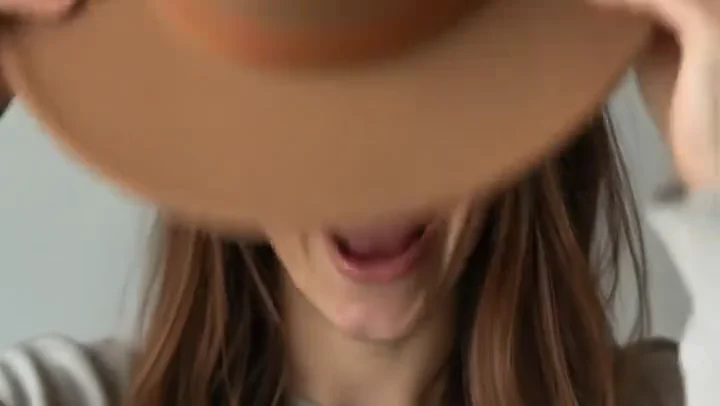
Close portrait in soft natural light
Expressive direct-to-camera portrait
Subtle facial motion at the end of a portrait scene

Key features

What Veo 3.1 Fast brings to the cut.

01

An exact eight-second beat

A fixed scene length makes shot planning and comparisons straightforward.

02

1080p source footage

Create Full HD scenes for portrait or landscape video sequences.

03

Text or image direction

Begin from an open prompt or anchor the composition with a reference.

04

A clean scene building block

Use the fixed-length result as one deliberate moment inside a longer edit.

How to use Veo 3.1 Fast

From direction to a reviewable cut.

  1. 01

    Describe one visual beat

    Name the subject, action, setting, camera move, and light in one compact direction.

  2. 02

    Choose the production frame

    Set text or image input, the output ratio, and a target length for the finished video.

  3. 03

    Review it in the Studio

    Continue with your choices attached, then confirm the complete edit before spending credits.

Direction notes

Three ways to get a stronger first pass.

  1. 01

    Write for one emotional or visual turn, not several unrelated events.

  2. 02

    Use close, medium, or wide framing explicitly when composition matters.

  3. 03

    Keep subject action physically readable within eight seconds.

FAQs

Before you create.

Yes. Choose Image to video here, then attach the actual reference in the Studio after the handoff.

Ready when you are

Put Veo 3.1 Fast into motion.

Prepare the direction here, then keep control of the brief, media, cost, and final generation inside the Studio.

Create with Veo 3.1 Fast
Brevity

Make the video you have in mind.

Start creating

Product

  • Explore videos
  • AI video tools
  • AI video models
  • AI video field guide
  • Pricing
  • Open studio

Popular tools

  • Text to video
  • Image to video
  • Music video generator
  • Product video generator
  • Browse every tool

Company & legal

  • About Brevity
  • Contact
  • Affiliates
  • Privacy policy
  • Terms of service
© 2026 Brevity AIPrivacy policyTerms
Billing by Stripe Managed Payments · EU VAT handled