Skip to content
Brevity
ExploreToolsModelsBlogPricing
Log in
Start creating
Models/Kling 3 Pro

Kuaishou · Kling

Kling 3 Pro

Shape cinematic text-to-video or image-to-video scenes across three formats, with a broad timing window for premium visual moments.

Create with Kling 3 Pro

Generator setup

Create with Kling 3 Pro

Input

One clear visual beat works best.124/2000

Studio composes model-valid scenes to reach this target.

No credits are used until you review and generate in the Studio.

Model showcase

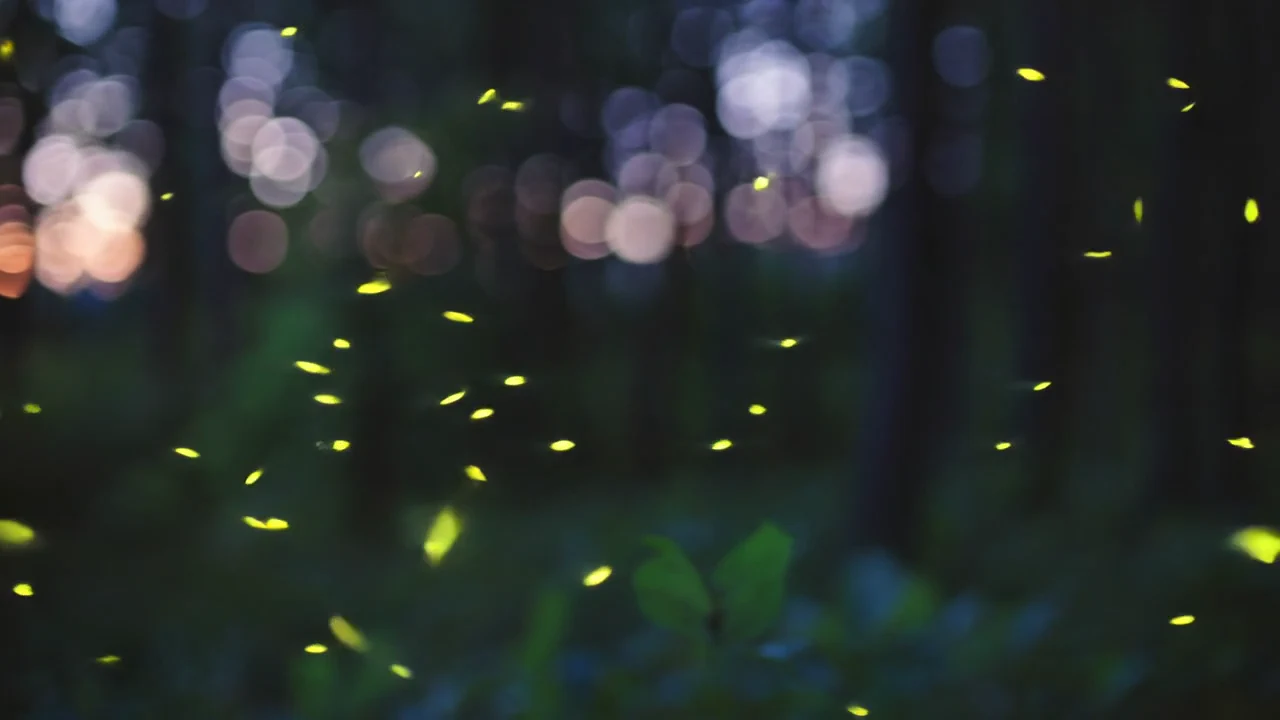
Glowing fireflies drifting through a forest at twilight

Scene output
HD
Scene length
3–15 seconds
Formats
Vertical, square, landscape
Inputs
Text or image

A closer look

Motion, frame by frame.

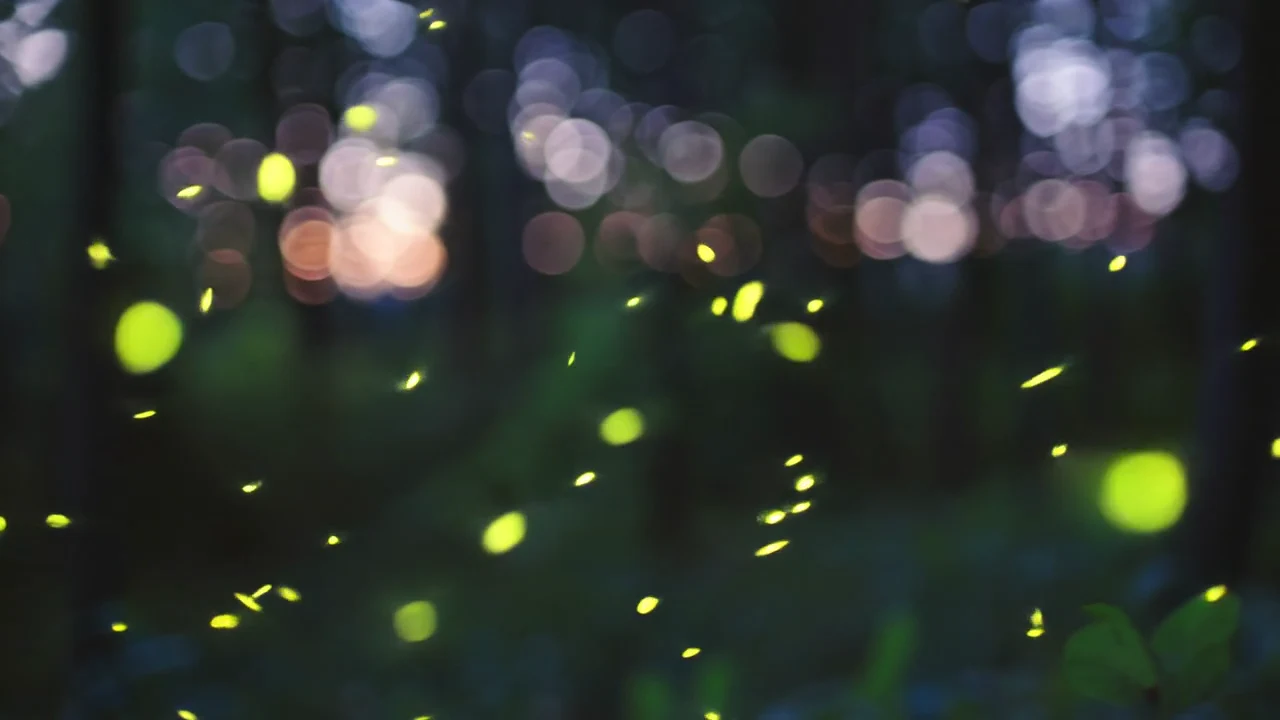
Selected frames from the Kling 3 Pro showcase reveal the movement, texture, and composition inside one scene.
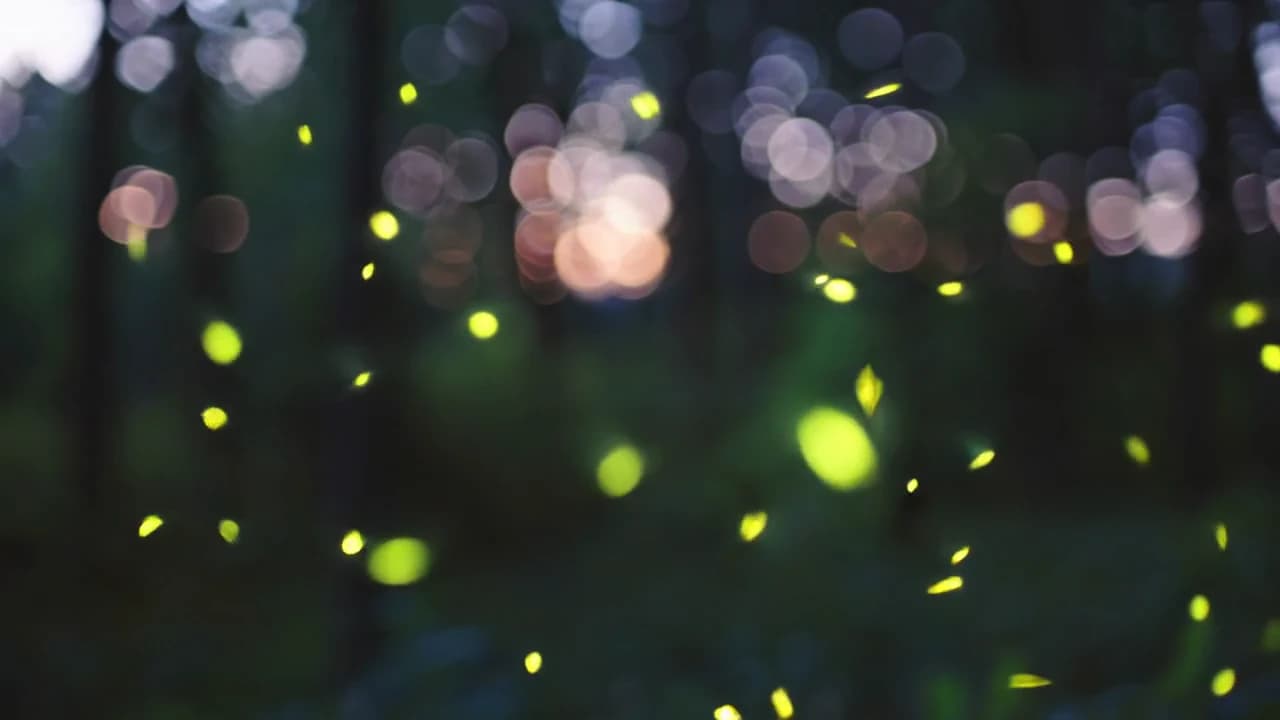
Fireflies crossing a softly lit forest clearing
Bioluminescent particles against twilight bokeh
A gathering of fireflies deeper in the dark forest

Key features

What Kling 3 Pro brings to the cut.

01

Cinematic scene direction

Give movement, environment, and camera language a clear role in the same shot.

02

A broad timing window

Choose any whole-second scene length from three through fifteen seconds.

03

Plan where the shot lands

End-frame support can shape transitions and deliberate final compositions.

04

Vertical, square, or wide

Keep Kling selected while adapting a scene for three common canvases.

How to use Kling 3 Pro

From direction to a reviewable cut.

  1. 01

    Describe one visual beat

    Name the subject, action, setting, camera move, and light in one compact direction.

  2. 02

    Choose the production frame

    Set text or image input, the output ratio, and a target length for the finished video.

  3. 03

    Review it in the Studio

    Continue with your choices attached, then confirm the complete edit before spending credits.

Direction notes

Three ways to get a stronger first pass.

  1. 01

    Describe camera movement separately from subject movement.

  2. 02

    Use image input when the opening architecture, product, or character must be exact.

  3. 03

    Give atmospheric effects a direction instead of listing them as decoration.

FAQs

Before you create.

Yes. Choose Image to video here, then attach the actual reference in the Studio after the handoff.

Ready when you are

Put Kling 3 Pro into motion.

Prepare the direction here, then keep control of the brief, media, cost, and final generation inside the Studio.

Create with Kling 3 Pro
Brevity

Make the video you have in mind.

Start creating

Product

  • Explore videos
  • AI video tools
  • AI video models
  • AI video field guide
  • Pricing
  • Open studio

Popular tools

  • Text to video
  • Image to video
  • Music video generator
  • Product video generator
  • Browse every tool

Company & legal

  • About Brevity
  • Contact
  • Affiliates
  • Privacy policy
  • Terms of service
© 2026 Brevity AIPrivacy policyTerms
Billing by Stripe Managed Payments · EU VAT handled